

How to Choose a Capture Card for Live Streaming
USB or internal, uncompressed or MJPG, capture versus passthrough formats, drivers and inputs: what decides whether a capture card is right for your stream.
On this page
A capture card takes the HDMI or SDI output of a camera, a console or a second computer and turns it into a video source your streaming software can use. Choosing one is less about brand and more about five questions: how it connects to your computer, which formats it really accepts, whether it sends the picture uncompressed, whether it needs a driver, and how many inputs you need. This guide goes through each of them and ends with a checklist you can use in a shop or on a product page.
What a capture card actually does
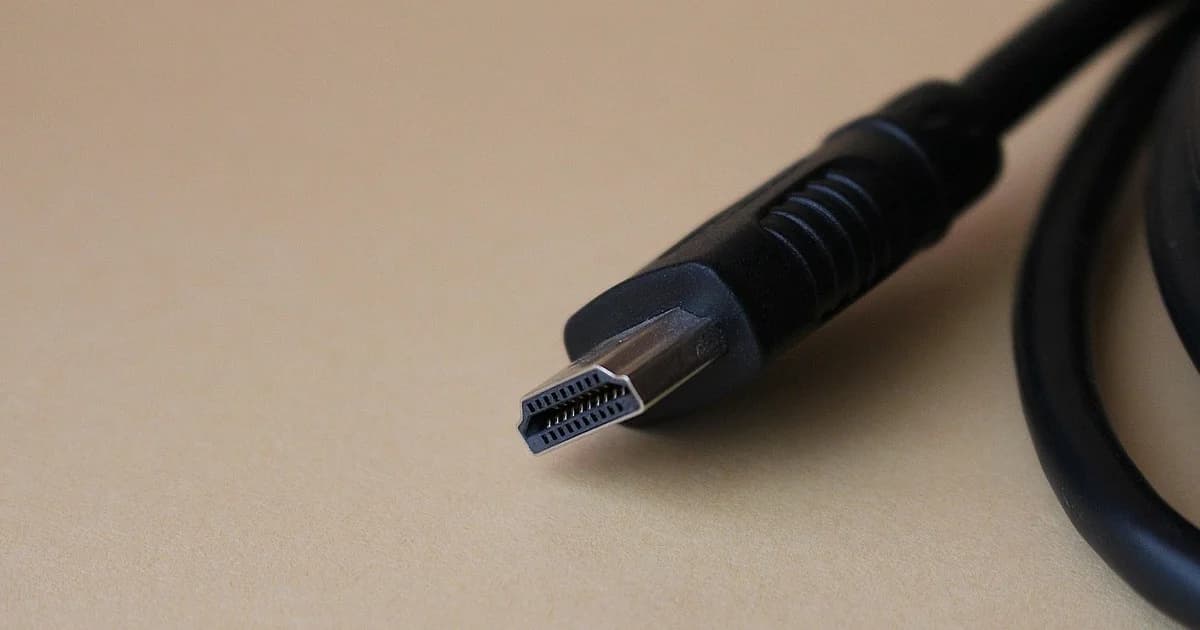
Your camera's HDMI output is meant for a monitor, not for a computer. A computer has no HDMI input, so something has to receive that signal, decode it and present it to the operating system as a camera. That is the whole job of a capture card.
A good card does this without adding much delay and without changing the picture. A weak one drops frames, scales the image without telling you, or compresses it so hard that fine detail turns to mush before your encoder even sees it. The differences are rarely visible on a spec sheet headline, which is why the details below matter.
USB or internal: how the card connects
External capture devices plug into a USB port and work with laptops. Internal cards sit in a PCIe slot of a desktop computer and are common in fixed studios.
| External USB device | Internal PCIe card | |
|---|---|---|
| Works with laptops | Yes | No |
| Setup | Plug in and go, often driverless | Needs a free slot and usually a driver |
| Bandwidth headroom | Limited by the USB port | Large, enough for several inputs |
| Typical use | Single camera, travel, small events | Multi-camera studio, fixed install |
| Weak point | Shared USB controllers and cheap cables | Slot and lane availability on the motherboard |
For one Full HD camera, a good USB device on a fast port is enough. For several cameras in one computer, or for UHD at high frame rates, internal cards have the bandwidth to spare.
Plug a USB capture device straight into a port on the computer, not into a hub, and prefer a port that does not share its controller with your external drive. A device that works on the bench and stutters during the show is often fighting for bandwidth with something else on the same controller.
Uncompressed or MJPG
This is the detail that separates cheap devices from reliable ones. Some capture devices send the picture to the computer uncompressed, in formats such as YUY2 or NV12. Others compress it to MJPG inside the device because their connection cannot carry the full picture.
MJPG is not always a problem, but it has two costs. The picture is compressed twice, once in the device and again by your streaming encoder, so fine detail and text suffer. And your computer has to decode the MJPG frames before it can encode them, which adds processor load you did not plan for.
Look in your streaming software at the video format the device offers for each resolution and frame rate. If the format you want exists only as MJPG, the device is compressing to fit its connection, and you should either step down a resolution or choose a device that offers an uncompressed format at your target.
Formats, frame rates and passthrough
A card that accepts a UHD input does not necessarily capture UHD. Many devices accept a high-resolution signal and pass it through to a monitor while capturing only a lower resolution for the computer. Read the capture formats, not the input formats.
Check that the card captures the exact frame rate your camera sends. If your camera outputs 50 frames per second for a region with 50 Hz mains, a card that captures only 30 or 60 will drop or repeat frames, and motion will judder.
Passthrough is an HDMI output on the card that lets you watch the camera signal on a monitor with no delay. It is useful when you also need a confidence monitor for the presenter, but it is not a requirement for streaming.
HDR capture matters only if your whole chain, including your encoder and your viewers' screens, handles HDR. For most live streams a standard dynamic range picture is the safe choice.
Drivers, compatibility and audio
Many external devices follow the UVC and UAC standards, which means your operating system sees them as a webcam and a microphone without any driver. That makes them easy to move between computers and between programs. Internal cards and some professional devices need a vendor driver, which gives you more control but ties you to supported operating systems.
Embedded audio from the camera's HDMI usually arrives on the same device. Make sure your software captures it from the card, and decide early whether you will use that audio or a separate microphone feed, so you do not end up with an echo of the same sound arriving twice.
If a laptop or a media player feeds the card and the picture stays black, the source may be encrypting its output with HDCP. Most capture devices refuse protected signals, and no setting in your streaming software can change that.
How many inputs you need
For one camera, a single-input device is simplest. For two or three cameras, you can use several single devices if each has its own bandwidth, but many computers run out of USB controllers or processor time before they run out of ports.
A multi-input internal card, or a hardware switcher that sends one finished program to a single capture input, are the usual answers for larger shows. A switcher has the extra benefit that your computer only encodes one picture, whatever number of cameras you cut between.
A short buying checklist
- Decide whether the card goes into a laptop or a desktop, and pick USB or PCIe from that.
- Write down the exact resolution and frame rate your camera sends, and check that the card captures, not just accepts, that format.
- Confirm the card offers an uncompressed format at that resolution and frame rate, not only MJPG.
- Check whether it is driverless or needs a driver for your operating system.
- Count your cameras today and next year, and plan the inputs and computer bandwidth for that number.
- Test the card with your own camera, cable and software for a full hour before your first event.
Where DCAST comes in
The capture card ends at your computer, and from there your streaming software sends the program to DCAST. When you create a stream you choose RTMP, SRT or WHIP for an encoder such as OBS, and you paste the server address and stream key from the stream page into it.
You can also skip the encoder software entirely. Camera mode on DCAST broadcasts straight from the browser and lets you pick any camera and microphone the browser can see. A driverless capture device appears there as a camera, so a professional camera on HDMI can go live through the browser without OBS.
Pick the capture format to match what your plan delivers live. The top live quality level is 720p on FREE, 1080p on STAR, 1440p on PRO and 2160p on VIP, so a UHD capture card mainly pays off on VIP or for a local recording.
Whatever card you choose, the stream page shows your picture on its Preview tab within seconds of starting, so you can see dropped frames or a wrong format before you invite anyone. If your software does not list the card at all, the guide on a streaming program that does not see a camera, card or microphone walks through the causes, and creating your first live stream shows each setting of a new stream.
Frequently Asked Questions
Do I need a capture card for a webcam?
No. A webcam already speaks USB video, so your computer sees it directly. A capture card is for cameras and devices that only have an HDMI or SDI output.
Why does my capture card add delay?
Some delay comes from the card itself and some from the format. MJPG has to be decoded first, and a few devices buffer frames internally, so an uncompressed format usually feels more immediate.
Can I use two USB capture devices on one laptop?
Often yes, if each sits on a port with its own controller and your laptop has the processor time to encode both. Test that exact combination before you depend on it.
Is a UHD capture card worth it for a Full HD stream?
Only if you need UHD for a local recording or for cropping. For a Full HD stream, a card that captures Full HD cleanly and without MJPG is the better buy.
dcast Team
Professional video streaming experts helping creators succeed.
Related Articles
Start Your Video Business Today
Upload, stream and sell your videos. Start on the free plan — no card needed.
Get Started Free