

How to Run HDMI or SDI Video Over Long Distances
Which cable, extender or converter carries a camera picture across a venue, where each option stops working, and why EDID can black out a healthy cable.
On this page
If your camera stands at the back of a hall and your switcher or capture card sits at the front, the cable between them decides whether the stream is clean or keeps flashing to black. This guide walks through the options in the order you should consider them: plain HDMI, active and optical HDMI, HDMI over network cable, SDI and fibre. For each one you get where it stops working and how to tell a weak cable from a handshake problem.
Why a long HDMI run fails
HDMI was designed to connect a player to a television across a living room, not to cross a venue. It sends the picture as very fast electrical pulses over thin copper pairs, and every metre of cable rounds those pulses off a little more. At some point the receiver can no longer tell a one from a zero, and you get sparkles, a picture that drops out for a second, or nothing at all.
The point where that happens depends on the signal, not only on the cable. A Full HD picture at a normal frame rate needs far less bandwidth than UHD at a high frame rate, so a cable that passed your rehearsal in Full HD can fail the moment you switch the camera to UHD.
When a picture works on a short cable and drops on a longer one, the cable is usually not faulty. The signal has simply lost too much strength on the way, and the fix is a different kind of link rather than a more expensive cable of the same kind.
Your options at a glance
| Link | Practical reach | What it needs | Watch out for |
|---|---|---|---|
| Passive HDMI cable | About 15 m in Full HD, less in UHD | Nothing | Weak locking, easily pulled out |
| Active or optical HDMI | Tens of metres | Power from the HDMI port | Optical cables work in one direction only |
| HDBaseT extender pair | Up to 100 m | One unbroken category cable, power at both ends | Couplers and patch panels in the run |
| SDI over coax | Far beyond HDMI, shorter for UHD | Converters if your devices are HDMI | Using antenna coax instead of video coax |
| Fibre converters | Kilometres | Power, fibre and connectors you can clean | Dirty or scratched connector ends |
Treat the reach figures as planning numbers, not promises. The real limit depends on the cable quality, the format you send and how many joins sit along the way.
Active, optical and network-cable HDMI
Active HDMI cables carry a small chip in the plug that boosts the signal, and optical HDMI cables turn the picture into light inside the cable. Both stretch a run to tens of metres without extra boxes, which makes them the simplest upgrade when a passive cable is just too short.
Optical HDMI cables are directional. One end is marked for the source and the other for the display, and if you pull one through a ceiling the wrong way round you will get no picture at all. Check the markings before the cable disappears behind a panel.
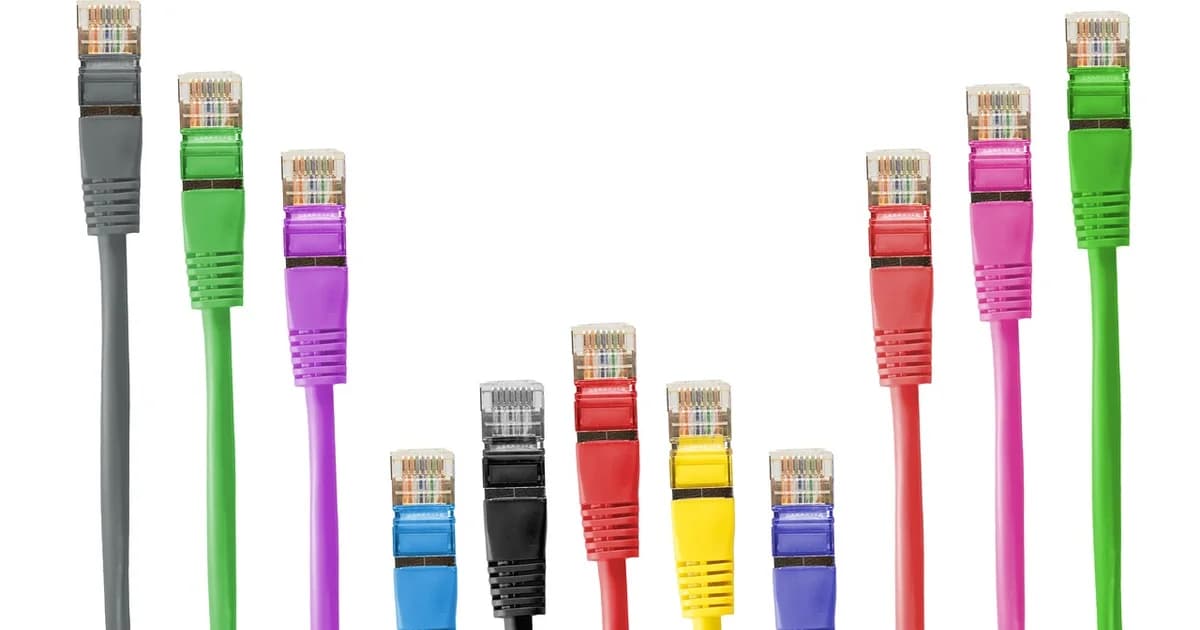
HDBaseT extenders send HDMI over a single network cable of category six or better. A transmitter sits next to the camera and a receiver next to your capture card. They cover most conference halls, churches and school auditoriums, and the cable itself is cheap and easy to pull.
Keep that network run in one piece from box to box. Patch panels, wall sockets and cheap couplers in the middle are the most common reason an extender drops out during the show, even when it worked during setup.
SDI: the cable built for distance
SDI was designed for exactly this job. It uses one coaxial cable with locking BNC connectors and a characteristic impedance of seventy-five ohms, it does not depend on a handshake between devices, and it reaches much further than HDMI.
Over good coax, a Full HD signal on 3G-SDI routinely crosses a large venue. UHD on the faster SDI variants needs far more bandwidth, so the same cable reaches noticeably less, and you should check the reach that your converter maker states for the format you plan to send.
Buy cable sold for digital video. Ordinary antenna coax looks identical from the outside but loses the high frequencies that a digital picture depends on, and it fails in exactly the way a too-long HDMI cable does.
Most cameras that streamers use have only an HDMI output, and most capture cards have only HDMI inputs. Small converters solve this: you turn HDMI into SDI next to the camera and back into HDMI at the switcher or capture card. Remember that each converter needs power at its end of the run, so plan a socket or a battery plate at the camera position.
For runs longer than copper can manage, fibre converters carry SDI or HDMI over kilometres and are immune to the electrical noise of lighting dimmers and stage power. They are worth it between buildings, across a stadium, or when your cable has to share a path with heavy power lines.
EDID and HDCP: when the cable is fine but the screen is black
EDID is the short message in which a screen or capture device tells the source which formats it accepts. If your camera receives no EDID, or a confusing one through a splitter or extender, it may refuse to send any picture even though the cable is perfect.
An EDID emulator, or an extender or splitter that can store a fixed EDID, makes the source believe a known display is attached. Set it to the exact format you plan to stream, and the black screen usually ends.
HDCP copy protection is a separate trap. Laptops, media players and some game consoles may encrypt their HDMI output, and most converters and capture devices then show nothing. Cameras normally send their output without HDCP, so if only one source stays black, check that device instead of your whole cable path.
SDI carries no EDID and no HDCP at all. That is one more reason crews prefer it for long runs: once an SDI link shows a picture, nothing in the middle can quietly renegotiate it.
A checklist before show day
- Measure the real route of each cable, including the climb up a wall and across a ceiling, and add a few metres of slack.
- Choose the link type from the table above for that length and that format, not for the shortest run in the room.
- Test the complete chain at the exact resolution and frame rate you will use on air, with every converter, extender and coupler in place.
- Leave the test running for at least half an hour, because a marginal link often fails only after the equipment warms up.
- Label both ends of each run with the camera name, so nobody swaps cables while you are on air.
- Keep one spare cable of the longest length you need, because a crushed cable under a door is a classic failure on show day.
- Tape or route cables away from doorways and walkways, and never coil the leftover length of a powered cable tightly.
Where DCAST comes in
Your cable run ends at a capture card, a switcher or a hardware encoder, and DCAST receives what that device sends. When you create a stream, you choose how the video arrives: RTMP, SRT or WHIP from an encoder, an HLS address, a file, or the camera of a browser or phone.
That means DCAST never sees your HDMI or SDI signal itself, only the encoded stream. If the picture is black at your capture card, the preview on the DCAST stream page will be black too, so check the picture at the capture card first and at the DCAST preview second.
The stream page shows your picture on its Preview tab within seconds of your encoder starting. Use that during the rehearsal: walk to each camera, wiggle the connectors gently, and watch whether the preview flickers.
Match the cable path to what your plan actually delivers live. The top live quality level is 720p on FREE, 1080p on STAR, 1440p on PRO and 2160p on VIP, so pulling a UHD-capable link to every camera only pays off on VIP or for a local recording.
A long run is a single point of failure. On the PRO and VIP plans, DCAST accepts a second encoder on the backup address of the same stream, and if your main feed is lost the broadcast continues from the backup with a hitch of a fraction of a second. For a real safety margin, feed that second encoder from a different camera path.
For a broadcast with several cameras on long runs, the guide to multi-camera live production covers the switching side, and connecting your encoder to DCAST shows where the server address and stream key go.
Frequently Asked Questions
How long can a passive HDMI cable be?
For Full HD, most crews stop at the length in the table above and switch to an active, optical or extender link beyond it. For UHD at a high frame rate, plan on much less, and test the exact cable with the exact format.
Is SDI better than HDMI for live streaming?
The picture is the same digital signal, so SDI does not look better. It is better as a cable: it locks, it reaches further and it has no handshake that can fail halfway through your event.
Why does my camera show a picture on a monitor but not through the extender?
Usually the extender passes a different EDID than the monitor did, or none at all. Store a fixed EDID in the extender or put an EDID emulator in front of the camera, then try again.
Do I need SDI if my venue already has network cabling?
Not necessarily. If your sockets connect straight through without switches in between, an HDBaseT pair over the existing cabling can do the job, but you should test that specific run before you rely on it.
dcast Team
Professional video streaming experts helping creators succeed.
Related Articles



Start Your Video Business Today
Upload, stream and sell your videos. Start on the free plan — no card needed.
Get Started Free