

NDI Explained: Sending Video Over a Network
How NDI carries live video over an ordinary network, full NDI versus NDI HX, what your switch and cabling must handle, and where NDI hands over to a streaming protocol.
On this page
NDI lets one device send live video and audio to another over an ordinary computer network instead of a video cable. A camera, a laptop or a second computer appears as a source on the network, and your production software picks it up the way it would pick up a capture card. This guide explains how that works, which flavour of NDI you need, what your network has to handle, and where NDI stops being the right tool.
What NDI is and what it replaces
NDI stands for Network Device Interface. It is a protocol for sending video, audio and control data between devices on a local network with very little delay. Instead of pulling an HDMI or SDI cable from every source to your switcher, you connect each source to a network switch, and every computer on that network can see every source.
The practical gain is flexibility. One network cable can carry a picture, its audio, a tally signal back to the camera and, with PTZ cameras, the commands that move the camera. A source can be watched by several computers at once, so the same camera can feed your switcher, a recording machine and a monitor in the next room without splitters.
NDI is a production tool for one building or one campus. It was not designed to cross the public internet, and that difference matters when you plan how your show reaches viewers.
Full NDI and NDI HX
There are two families of NDI, and you need to know which one your devices speak.
| Full NDI | NDI HX | |
|---|---|---|
| Compression | Light, visually lossless | Long-GOP, like a streaming codec |
| Network load | High, plan for gigabit | Much lower, fits busier networks |
| Delay | Very low | A little higher |
| Typical sources | Computers, converters, studio cameras | PTZ cameras, phones, small converters |
| Load on the receiving computer | Light to decode | Needs more decoding effort |
Full NDI keeps quality close to an uncompressed signal and asks a lot of the network: a single 1080p60 source uses on the order of a hundred megabits per second or more. NDI HX compresses much harder, so a whole set of HX cameras can share a network that would choke on two full-bandwidth sources.
If your switcher machine is already busy, keep in mind that each HX source has to be decoded on it. Full NDI is cheaper to decode but heavier on the cable, so the bottleneck simply moves from the network to the processor and back depending on which flavour you choose.
What your network needs
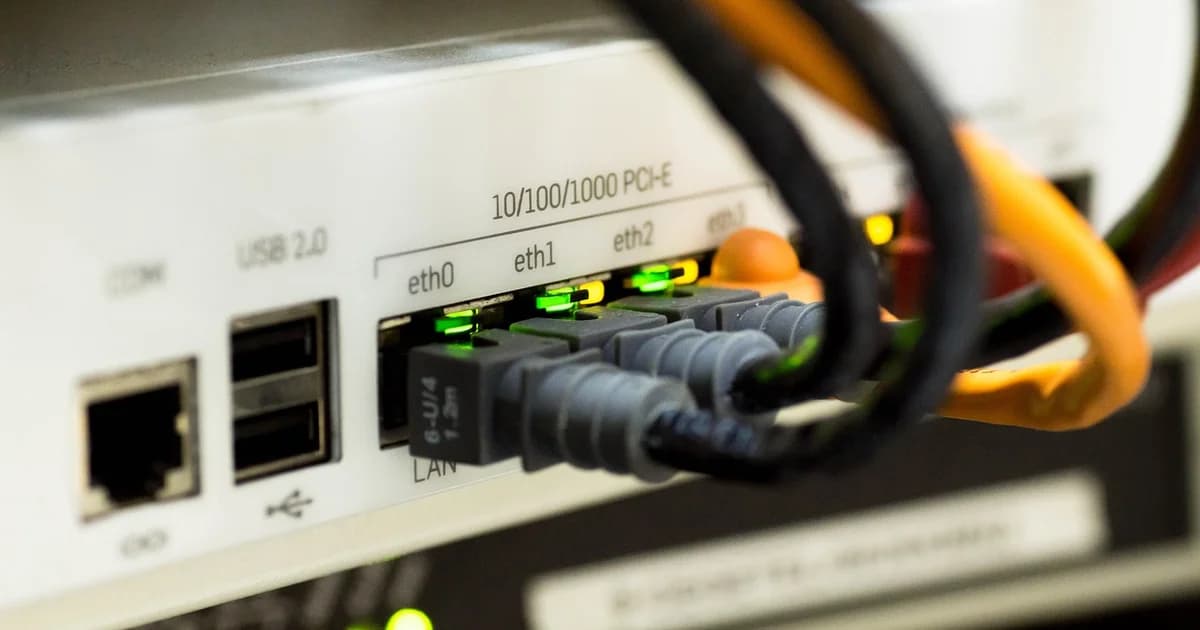
Use wired gigabit Ethernet for every NDI device you rely on. Wi-Fi works for a quick test or a slide laptop, but its capacity is shared and changes from second to second, and dropped frames are the first thing you will notice.
Put your production devices on one switch, or on switches that are connected to each other with enough capacity. A cheap unmanaged switch is often fine for a handful of sources. Problems usually start when the production network is the same as the venue's guest network, or when a camera sits behind a router that does not pass discovery traffic.
NDI devices find each other automatically with multicast name discovery inside one subnet. If your sources are on different subnets or VLANs, they will not appear on their own. In that case you can type the source address by hand or run an NDI discovery server that every device registers with.
Check your switch ports and cables before you blame the software. A port that negotiated a hundred megabits instead of a gigabit, or a damaged patch cable, produces exactly the stutter that people then try to fix in the switcher settings.
Getting NDI into your production software
vMix and several hardware switchers read NDI sources directly. OBS Studio needs an NDI plugin, after which NDI sources appear in the source list. Once the plugin or the native support is in place, an NDI source behaves like any other camera input in your scenes.
The free NDI Tools add useful pieces: a monitor application to view any source on the network, a screen capture that turns a presenter laptop into a source, and converters that make an NDI source look like a webcam to software that knows nothing about NDI.
A simple setup for a talk or a church service looks like this:
- Connect the PTZ or NDI camera and the switcher computer to the same gigabit switch.
- Install the NDI support your software needs and restart it.
- Open a monitor tool on the switcher computer and confirm that every source appears.
- Add each source to your scenes and set its bandwidth to full or low depending on the role it plays.
- Run the full show for half an hour while you watch the dropped frame counter of your software.
When a source stutters or disappears
A source that is missing from the list is almost always a discovery problem, not a video problem. Check that both devices sit in the same subnet, that a firewall on the switcher computer allows the NDI software, and that the camera has not picked up a new address from the venue router since yesterday. Giving cameras fixed addresses saves you this search on the day.
A source that appears but stutters is usually a capacity problem. Look at the link speed of each port, unplug anything on that switch that does not belong to the show, and try the low-bandwidth version of the source to see whether the stutter disappears. If it does, your network is the limit; if it does not, the computer decoding the source is.
When NDI is the wrong tool
NDI is not a way to send your show to viewers. It has no player for the public, no adaptive quality for slow phones and no delivery network. Your viewers need a stream, and that means an encoder that turns your program into a streaming protocol.
It is also a poor choice for a remote guest or a camera across town. Over the internet, packet loss and changing delay break the assumptions NDI makes about a local network. SRT was made for that situation: it re-requests lost packets within a fixed delay budget, so a remote source arrives in order even over a weak connection.
Finally, if you have only one camera next to the computer, a capture card and a short cable are simpler and need no network planning at all.
Where DCAST comes in
NDI ends at your switcher. DCAST starts where your switcher hands off its program: you create a stream, pick RTMP, SRT or WHIP as the way it arrives, and paste the server address and stream key into your software. NDI is not one of the ingest options, and it does not need to be, because your switcher already turns all your NDI sources into one program.
If a camera or a guest is outside your building, send that leg over SRT rather than NDI. DCAST issues SRT addresses with a default latency of 500 ms, and you can raise it up to 7000 ms when the connection loses packets. For a source that lives in a web browser, WHIP is the WebRTC route into the same stream.
Your choice of protocol does not change the quality ladder your viewers receive: whichever route you use, the stream page shows your picture on its Preview tab, and the watch page plays the same set of quality levels. The comparison of RTMP, SRT and WHIP explains which one suits your network, and the help page on connecting your encoder shows where each field goes.
Frequently Asked Questions
Can I use NDI over Wi-Fi?
You can for a test, but not for a show you care about. Wireless capacity is shared and unstable, so frames drop as soon as other devices get busy.
Does NDI work over the internet?
Not reliably on its own. Use SRT for a remote source, or a bridge tool that wraps NDI for wide-area links, and keep NDI itself inside your local network.
Do I need a special switch?
For a few sources, an ordinary gigabit switch is usually enough. For many full-bandwidth sources, choose a managed switch with enough backplane capacity and check that every port runs at full speed.
Can DCAST receive NDI directly?
No. Your switcher software or encoder receives NDI and sends the program to DCAST over RTMP, SRT or WHIP.
dcast Team
Professional video streaming experts helping creators succeed.
Related Articles


Start Your Video Business Today
Upload, stream and sell your videos. Start on the free plan — no card needed.
Get Started Free