Automate Your Live Production With Hotkeys, Button Panels and Triggers
From keyboard hotkeys to button panels, control software, sequences and triggers: how one operator automates a live show without surprises on air.
On this page
When one person runs a live show, the hard part is rarely knowing what to do. It is doing five things at the same moment: switch the camera, bring up a name title, unmute the right microphone, start the recording and keep an eye on the chat. Automation does not replace the operator; it turns those five clicks into one deliberate press. This guide walks through the levels of automation, from simple hotkeys to button panels and triggers, and shows how to build them so they help you on air instead of surprising you.
Why automate a live production
The first reason is speed. A scene change that needs three clicks in three windows will sometimes be late, and late on a live stream is visible. A single button that does the whole change is never late.
The second reason is consistency. If the opening of every show is the same sequence of countdown, intro video, wide shot and title, a stored sequence runs it identically every week, whoever is at the desk.
The third reason is fewer mistakes. A volunteer who presses a clearly labelled button called "Speaker" is far less likely to cut to the wrong camera than one hunting through a list of scenes with similar names.
Level one: hotkeys in your production software
Every serious production program lets you assign keyboard shortcuts. OBS Studio has hotkeys for switching scenes, showing and hiding sources, muting audio, starting and stopping the stream and the recording. vMix and other switchers offer the same and more.
Start small. Map the scenes you cut to most often, the mute for each microphone and a "start recording" key. Use keys that cannot be pressed by accident, for example the number pad or combinations with a modifier, and keep the same layout for every show so your hands learn it.
Hotkeys have one weakness: the keyboard has no labels and gives no feedback. You cannot see which scene is live by looking at the keys, which is why many operators move on to button panels.
Level two: button panels
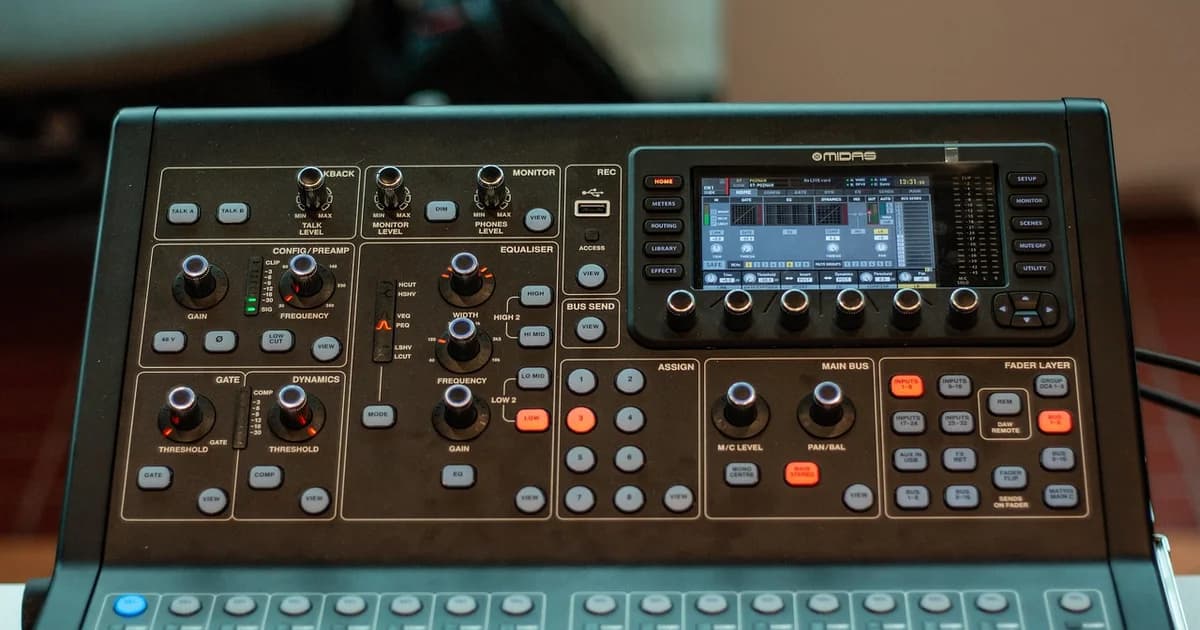
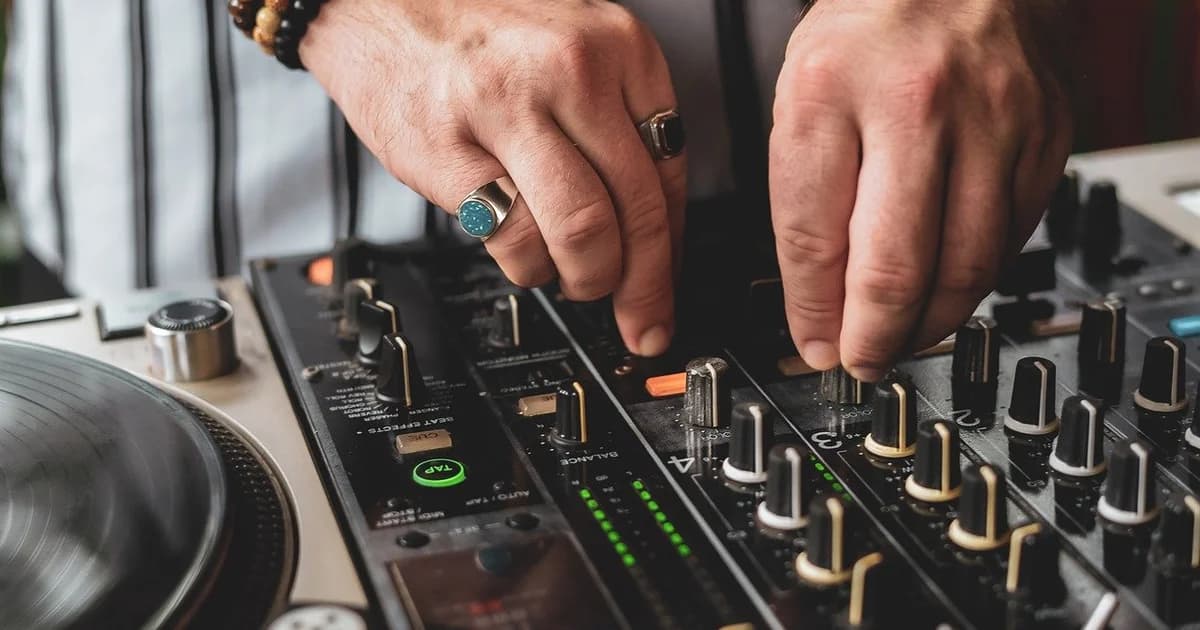
A button panel puts physical, labelled buttons on the desk. Popular options include programmable keypads with small screens on each key, MIDI controllers made for music, and tablet apps that show a grid of touch buttons.
| Tool | Strength | Limitation |
|---|---|---|
| Keyboard hotkeys | Free, already on the desk | No labels, no feedback, easy to mistype |
| Keypad with screen keys | Labels and live feedback on every key | Needs control software and a desk spot |
| MIDI controller | Faders and knobs for audio, cheap | Labels are up to you, setup takes time |
| Tablet button app | Flexible layout, works away from the desk | Depends on Wi-Fi and battery |
The real power comes from feedback. A good setup lights the key of the scene that is live, shows when a microphone is muted and changes colour when the recording runs. You read the state of the show from the panel instead of from three windows on a screen.
Control software: one place for every device
Button panels on their own only send key presses. Control software such as Bitfocus Companion sits between the buttons and your equipment and translates each press into commands that different devices understand.
Through control software, one panel can drive several systems at once:
- your streaming or switching software, over its remote control connection
- hardware switchers that accept network commands
- PTZ cameras, to recall presets
- audio mixers, to mute or fade channels
- any web service that accepts an HTTP request
That last point matters more than it looks. Many services, including streaming platforms, can be controlled with simple HTTP requests, so a button can talk to them directly instead of you switching to a browser tab.
Sequences and triggers
A sequence, sometimes called a macro, is a list of actions behind one button. A typical "go to speaker" sequence recalls a PTZ preset on the speaker camera, waits until the camera settles, cuts to that camera, shows a name title for ten seconds and hides it again.
Triggers start actions without a button. A countdown can start the intro video when it reaches zero. A plugin can switch scenes when a microphone becomes active. A schedule can start the recording at a fixed time. Triggers are powerful, but they act on their own, so start with triggers that only add something, such as a title or a recording, and keep anything that ends the broadcast on a button you press yourself.
Building automation you can trust on air
Automation fails in two ways: it does nothing when you need it, or it does something you did not expect. Both are avoidable with a few habits.
- Label every button with the result it produces, not the name of the scene file behind it.
- Give destructive actions a confirmation. Ending the stream should need a long press or a second button.
- Keep a manual fallback. Know how to do every automated step by hand in your software, and practise it once.
- Test the full sequence in rehearsal, with the real cameras and microphones, not only in an empty test scene.
- Save and back up your configuration, and keep a printed sheet of the button layout next to the panel.
- Change nothing in the hour before the show. A new button you have not used in rehearsal is a risk, not a help.
Starting and stopping a DCAST broadcast from a button
On DCAST, a broadcast has two separate moments. Your encoder can connect early, and the stream page shows the picture on its Preview tab while you check sound and framing. Viewers see the broadcast once you press Start, and it ends when you press Stop.
Both moments can be automated. The DCAST Partner API has a request that starts a stream and one that ends it, and they run through the same go-live and stop path as the buttons in your dashboard. Start only succeeds once your encoder's signal has reached the stream, so a sequence should start the encoder first, wait a few seconds and then send the start request.
You authenticate those requests with an API key that you create in your dashboard under Settings and API Keys, sent in the authorisation header of each request. Control software that can send HTTP requests can therefore put Start and Stop for your DCAST broadcast on two buttons of your panel.
Ending a standard broadcast this way behaves exactly like the Stop button in your dashboard: the recording is closed and the replay is prepared at the same watch link. Keep the API key as private as a stream key, because anyone who has it can start and stop your broadcasts.
The Partner API reference lists the exact requests, and the guide to PTZ cameras and presets shows how to plan the camera positions your sequences will recall.
Frequently Asked Questions
Do I need a button panel, or are hotkeys enough?
Hotkeys are enough for a few actions you use every show. A panel becomes worth it when you need labels and live feedback, or when someone else will run the show after you.
Can automation start my stream by itself at a fixed time?
Yes, a scheduled trigger can do that, but check the picture first. A broadcast that starts on time with a black screen or a muted microphone is worse than one that starts a minute late.
What is the safest thing to automate first?
Scene changes and titles. They add to the show and are easy to undo, unlike ending the stream or deleting a recording.
Will my automation break when my software updates?
It can. Read the release notes of your production and control software, and run your sequences once after every update before a live show.
dcast Team
Professional video streaming experts helping creators succeed.
Related Articles
Start Your Video Business Today
Upload, stream and sell your videos. Start on the free plan — no card needed.
Get Started Free