
PTZ Cameras for Live Production: Choosing, Connecting and Using Presets
When a remote-controlled camera makes sense, what to compare before you buy, how to connect picture, power and control, and how to plan presets one operator can run.
On this page
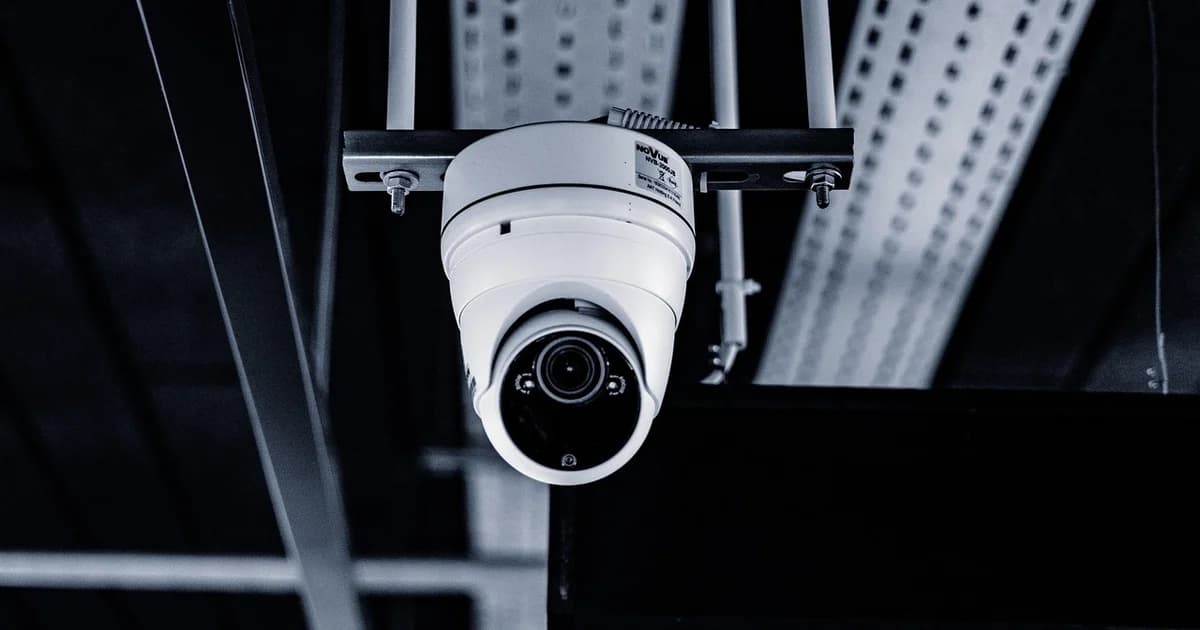
A PTZ camera can pan left and right, tilt up and down and zoom in and out by remote control. One person at a desk can run several of them, which is why you find them in churches, lecture halls, council chambers and conference rooms where nobody stands behind a tripod. This guide covers what to look for when you choose one, how to connect it for picture, power and control, and how to plan presets so a single operator can run a smooth show.
When a PTZ camera makes sense
PTZ cameras shine when the positions you need are predictable and repeat from event to event. A pulpit, a lectern, a choir, a stage and a wide shot of the room can each be stored as a preset and recalled with one button.
They are less suited to the fast, unpredictable action you get in sport. A football match or a dance performance needs a person who follows the subject continuously, and a remote-controlled head always feels a moment behind. Auto-tracking modes help with a single presenter who walks around, but they still lose a subject in a crowd.
Think about who will operate the show. If you have one volunteer and four positions to cover, PTZ is the practical answer. If you have three trained camera operators, conventional cameras on tripods give them more freedom.
What to compare when you choose
| Feature | What it means for you | What to check |
|---|---|---|
| Optical zoom range | How tight a shot you get from the back of the room | A face framed from the mounting point |
| Video outputs | HDMI, SDI, network video or several at once | The inputs of your switcher or capture card |
| Network video | NDI HX, SRT or RTMP straight from the camera | Whether you want to stream without a computer |
| Control protocols | VISCA over serial or IP, ONVIF, vendor protocols | That your controller or software speaks it |
| Power | Mains adapter or power over Ethernet | A socket or PoE port at the mounting point |
| Low-light performance | How clean the picture stays in a dim room | Your real lighting during a service or talk |
For you, optical zoom matters more than resolution. A camera that zooms optically keeps detail when you frame a speaker from twenty metres away, while digital zoom only enlarges pixels. Work out the distance from the mounting point to the farthest subject, then check the zoom range against it.
Pay attention to low light. Many rooms where PTZ cameras hang are dimmer than they look to the eye, and a small sensor turns noisy in exactly those conditions. If you can, test a camera in your own room before you buy several of the same model.
Connecting picture, power and control
A PTZ camera usually needs three things: a path for the picture, power, and a path for control commands. How you provide them depends on the outputs it has.
HDMI or SDI for the picture. These give you the lowest delay and work with any switcher or capture card. For long distances, SDI is the safer cable, because it locks and reaches much further than HDMI.
Network for the picture. Cameras with NDI HX, SRT or RTMP send their picture over a network cable. That saves running a video cable to the ceiling, but adds some delay and puts load on your network, so plan a wired gigabit network for it.
Power over Ethernet. Many PTZ cameras can take power and network over one cable from a PoE switch. Check that the switch supplies enough power per port for that model, because motors and heaters draw more than a typical phone or access point.
Control. VISCA is the most common control language. It runs over a serial cable on older installations and over the network on newer ones. ONVIF and vendor protocols are also common. Whatever you choose, make sure your joystick controller or your software speaks the same protocol as your camera.
Give each camera a fixed network address. If an address changes between the rehearsal and the show, your controller loses the camera at the worst moment.
Planning presets that look good on air
A preset stores your pan, tilt, zoom and often focus and exposure. Good presets are what turn a remote camera into a production tool.
- Walk through your event and list the shots you really need, in the order you will need them.
- Frame each shot with a little headroom and space in the direction the person faces, as a camera operator would.
- Store the shots in a logical order, so the first preset is always the wide shot and the numbers follow the room from left to right.
- Set the recall speed for each preset. A slow, steady move can be shown on air; a fast jump should happen only while the camera is off air.
- Write the preset list next to the controller with a one-word name for each position.
- Recall every preset once at the start of the rehearsal, because people and microphone stands move between events.
The single most useful habit is to move a camera only while it is not on air. Cut to another camera, recall the preset, wait until it settles and then cut back. Viewers never see the camera hunting for its position.
Controllers and automation
A hardware joystick controller gives you smooth manual moves and one-button presets, and it keeps working when a computer freezes. Software control is cheaper and puts presets next to your switcher: vMix has built-in PTZ control, and OBS Studio can control many PTZ cameras through plugins.
Button panels such as a Stream Deck, driven by control software, can store presets as labelled buttons and combine them with scene changes. One button can switch to a backup camera, recall a preset on the main camera and cut back when it is ready. The guide to automating your production with hotkeys and button panels shows how to build such sequences.
Tally lights on the camera help your presenters know which camera is live. Many PTZ cameras show tally when the switcher or control software tells them which source is on air.
Streaming from a PTZ camera to DCAST
DCAST receives the picture after your switcher, or straight from the camera if the camera can stream by itself. When you create a stream, you pick how the video arrives: RTMP, SRT or WHIP from an encoder, an HLS address, a file, or the camera of a browser or phone.
A single PTZ camera with a built-in RTMP or SRT encoder can publish directly to a DCAST stream without a computer. Copy the server address and stream key from the stream page into the camera's streaming settings, start the stream in the camera, and the DCAST Preview tab shows the picture within a few seconds.
For a room with several PTZ cameras, the cameras feed your switcher or software, and that sends one finished program to DCAST. That way you can cut between presets while your viewers see one continuous broadcast.
A service or a lecture that runs every week is also recorded automatically on DCAST, as long as the stream stays in the standard mode, so the replay is ready at the same watch link after the event. See creating your first live stream for the settings of a new stream.
Frequently Asked Questions
Do PTZ cameras need a computer to stream?
Not always. Many models with built-in RTMP or SRT encoders can stream straight to a platform. For several cameras, you still need a switcher or software to choose which picture goes out.
Can I power a PTZ camera over the network cable?
Many models support power over Ethernet. Check the power class the camera needs and make sure your switch supplies it on every port you use.
What is VISCA?
It is a control protocol for moving cameras and recalling presets. It started on serial cables and is now widely used over IP networks as well.
Is auto-tracking good enough to replace an operator?
For one presenter on a clear stage it often is. In a busy room, or when several people speak, it is safer to have someone recall presets by hand.
dcast Team
Professional video streaming experts helping creators succeed.
Related Articles
Start Your Video Business Today
Upload, stream and sell your videos. Start on the free plan — no card needed.
Get Started Free